class(surveys)[1] "spec_tbl_df" "tbl_df" "tbl" "data.frame" It’s a new day. Let’s open a new script and run these two lines first to reload the packages and read the raw data in again.
We’ve learned how to create visualisations from the surveys data, but what actually is surveys? R commonly stores tabular data in data frames, and that is how the surveys data is stored. Today we’ll work with surveys (the original data, including the NAs) rather than survData (we created yesterday by removing the NAs), because we’re going to look at how R handles missing values.
It’s useful to understand how R thinks about, represents, and stores data in order for us to have a productive working relationship with R.
We can check what surveys is by using the class() function:
class(surveys)[1] "spec_tbl_df" "tbl_df" "tbl" "data.frame" You’ll see four names. The last one, data.frame, is the important one: that is how R stores a table. The other three (spec_tbl_df, tbl_df, tbl) are tidyverse labels for a tibble, a slightly friendlier version of a data.frame that read_csv() gives us.
Yesterday we used head()and tail() to look at the first and last six rows. Both functions take a second argument if you want a different number of rows:
# By default these show six rows
head(surveys)
# A tibble: 6 × 13
record_id month day year plot_id species_id sex hindfoot_length weight
<dbl> <dbl> <dbl> <dbl> <dbl> <chr> <chr> <dbl> <dbl>
1 1 7 16 1977 2 NL M 32 NA
2 2 7 16 1977 3 NL M 33 NA
3 3 7 16 1977 2 DM F 37 NA
4 4 7 16 1977 7 DM M 36 NA
5 5 7 16 1977 3 DM M 35 NA
6 6 7 16 1977 1 PF M 14 NA
# ℹ 4 more variables: genus <chr>, species <chr>, taxa <chr>, plot_type <chr>tail(surveys)# A tibble: 6 × 13
record_id month day year plot_id species_id sex hindfoot_length weight
<dbl> <dbl> <dbl> <dbl> <dbl> <chr> <chr> <dbl> <dbl>
1 16873 12 5 1989 8 DO M 37 51
2 16874 12 5 1989 16 RM F 18 15
3 16875 12 5 1989 5 RM M 17 9
4 16876 12 5 1989 4 DM M 37 31
5 16877 12 5 1989 11 DM M 37 50
6 16878 12 5 1989 8 DM F 37 42
# ℹ 4 more variables: genus <chr>, species <chr>, taxa <chr>, plot_type <chr># We can also ask for a different number
head(surveys, 10)# A tibble: 10 × 13
record_id month day year plot_id species_id sex hindfoot_length weight
<dbl> <dbl> <dbl> <dbl> <dbl> <chr> <chr> <dbl> <dbl>
1 1 7 16 1977 2 NL M 32 NA
2 2 7 16 1977 3 NL M 33 NA
3 3 7 16 1977 2 DM F 37 NA
4 4 7 16 1977 7 DM M 36 NA
5 5 7 16 1977 3 DM M 35 NA
6 6 7 16 1977 1 PF M 14 NA
7 7 7 16 1977 2 PE F NA NA
8 8 7 16 1977 1 DM M 37 NA
9 9 7 16 1977 1 DM F 34 NA
10 10 7 16 1977 6 PF F 20 NA
# ℹ 4 more variables: genus <chr>, species <chr>, taxa <chr>, plot_type <chr>tail(surveys, 3)# A tibble: 3 × 13
record_id month day year plot_id species_id sex hindfoot_length weight
<dbl> <dbl> <dbl> <dbl> <dbl> <chr> <chr> <dbl> <dbl>
1 16876 12 5 1989 4 DM M 37 31
2 16877 12 5 1989 11 DM M 37 50
3 16878 12 5 1989 8 DM F 37 42
# ℹ 4 more variables: genus <chr>, species <chr>, taxa <chr>, plot_type <chr>We can get a useful summary of each numeric variable (column) by using summary():
summary(surveys) record_id month day year plot_id
Min. : 1 Min. : 1.000 Min. : 1.0 Min. :1977 Min. : 1.00
1st Qu.: 4220 1st Qu.: 3.000 1st Qu.: 9.0 1st Qu.:1981 1st Qu.: 5.00
Median : 8440 Median : 6.000 Median :15.0 Median :1983 Median :11.00
Mean : 8440 Mean : 6.382 Mean :15.6 Mean :1984 Mean :11.47
3rd Qu.:12659 3rd Qu.: 9.000 3rd Qu.:23.0 3rd Qu.:1987 3rd Qu.:17.00
Max. :16878 Max. :12.000 Max. :31.0 Max. :1989 Max. :24.00
species_id sex hindfoot_length weight
Length :16878 Length :16878 Min. : 6.00 Min. : 4.00
N.unique : 35 N.unique : 2 1st Qu.:21.00 1st Qu.: 24.00
N.blank : 0 N.blank : 0 Median :35.00 Median : 42.00
Min.nchar: 2 Min.nchar: 1 Mean :31.98 Mean : 53.22
Max.nchar: 2 Max.nchar: 1 3rd Qu.:37.00 3rd Qu.: 53.00
NAs : 357 NAs : 1300 Max. :70.00 Max. :278.00
NAs :2733 NAs :1692
genus species taxa plot_type
Length :16878 Length :16878 Length :16878 Length :16878
N.unique : 23 N.unique : 30 N.unique : 4 N.unique : 5
N.blank : 0 N.blank : 0 N.blank : 0 N.blank : 0
Min.nchar: 6 Min.nchar: 3 Min.nchar: 4 Min.nchar: 7
Max.nchar: 16 Max.nchar: 15 Max.nchar: 7 Max.nchar: 25
NAs : 357 NAs : 357 NAs : 357
Let’s look at the structure of surveys using str(). It lists every column with its type and the first few values. (give.attr = FALSEhides some extra technical details that read_csv()attaches to the data.)
str(surveys, give.attr=FALSE)spc_tbl_ [16,878 × 13] (S3: spec_tbl_df/tbl_df/tbl/data.frame)
$ record_id : num [1:16878] 1 2 3 4 5 6 7 8 9 10 ...
$ month : num [1:16878] 7 7 7 7 7 7 7 7 7 7 ...
$ day : num [1:16878] 16 16 16 16 16 16 16 16 16 16 ...
$ year : num [1:16878] 1977 1977 1977 1977 1977 ...
$ plot_id : num [1:16878] 2 3 2 7 3 1 2 1 1 6 ...
$ species_id : chr [1:16878] "NL" "NL" "DM" "DM" ...
$ sex : chr [1:16878] "M" "M" "F" "M" ...
$ hindfoot_length: num [1:16878] 32 33 37 36 35 14 NA 37 34 20 ...
$ weight : num [1:16878] NA NA NA NA NA NA NA NA NA NA ...
$ genus : chr [1:16878] "Neotoma" "Neotoma" "Dipodomys" "Dipodomys" ...
$ species : chr [1:16878] "albigula" "albigula" "merriami" "merriami" ...
$ taxa : chr [1:16878] "Rodent" "Rodent" "Rodent" "Rodent" ...
$ plot_type : chr [1:16878] "Control" "Long-term Krat Exclosure" "Control" "Rodent Exclosure" ...Notice the $ in front of each column name in the str() output. $ is an important operator in R: it pulls out a single column from a data frame. If we type the name of a data frame followed by a $, RStudio will offer tab completion to select a variable within the data from a list by navigating up and down with the arrow keys and hitting enter, or by clicking on the variable you want.
# Just the first 20 values
head(surveys$year, 20)
[1] 1977 1977 1977 1977 1977 1977 1977 1977 1977 1977 1977 1977 1977 1977 1977
[16] 1977 1977 1977 1977 1977The year column we just printed is referred to as a vector by R. While data frames are made up of columns and rows, vectors are 1-dimensional series of values. Each column in a data frame is actually a vector. Vectors are the basic building blocks of all data in R.
There are 4 main types of vectors (also known as atomic vectors):
“character” for strings of characters, like our genus or sex columns. Each entry in a character vector is wrapped in quotes. In other programming languages, this type of data may be referred to as “strings”.
“integer” for integers (whole numbers). You may sometimes see integers represented like 2L or 20L. The L indicates to R that it is an integer, instead of the next data type, “numeric”.
“numeric”, aka “double”, vectors can contain numbers including decimals. Other languages may refer to these as “float” or “floating point” numbers.
“logical” for TRUE and FALSE, which can also be represented as T and F. In other contexts, these may be referred to as “Boolean” data. Note these values are not quoted as R recognises them as logical values.
Vectors can only be of a single type. Since each column in a data frame is a vector, this means an accidental character following a number, like ‘29i’, can change the type of the whole vector. If you’re working with messy data it’s useful to check the vector types of each column to ensure they are all what you are expecting, otherwise it could indicate a typo in one of the values.
To create a vector from scratch, we can use the c() function, putting values inside, separated by commas.
c(1, 2, 5, 12, 4)[1] 1 2 5 12 4The values get printed out in the console. To store this vector so we can continue to work with it, we need to assign it to an object.
num <- c(1, 2, 5, 12, 4)
class(num)
[1] "numeric"We see that num is a numeric vector.
Let’s try making a character vector.
char <- c("apple", "pear", "grape")
class(char)
[1] "character"Remember that each entry, like “apple”, needs to be surrounded by quotes, and entries are separated with commas. If you do something like “apple, pear, grape”, you will have only a single entry containing that whole string.
Finally, let’s make a logical vector.
logi <- c(TRUE, FALSE, TRUE, TRUE)
class(logi)
[1] "logical"There is an important distinction between 0 and a missing value. A 0 means a 0 was observed, whereas a missing value means there was no observation recorded. R represents missing data as NA, without quotes, in vectors of any type.
Let’s make a numeric vector with an NA value.
weights <- c(25, 34, 12, NA, 42)R doesn’t make assumptions about how you want to handle missing data, so if we pass this vector to a numeric function like min() to get the minimum value, it won’t know what to do, so it returns NA.
min(weights)[1] NAThis is a very good thing, since we won’t accidentally forget to consider our missing data. If we decide to exclude our missing values, many basic mathematical functions have an argument to remove them.
min(weights, na.rm = TRUE)[1] 12A common use of vectors is to pass them as arguments in functions. The median() function calculates the median of a set of values. We also need to set na.rm = TRUE, since there are NA values in the weight column. This is the other common way to deal with missing values. Yesterday, we removed the rows with na.omit(), and today we tell each function to ignore them.
median(surveys$weight, na.rm = TRUE)[1] 42Or we could pass this column to hist(), a base-R function that draws a quick histogram. It’s handy for a two-second check of the skew. If you’d like a nicer figure to show someone else, you can use geom_histogram() as we did yesterday.
hist(surveys$weight)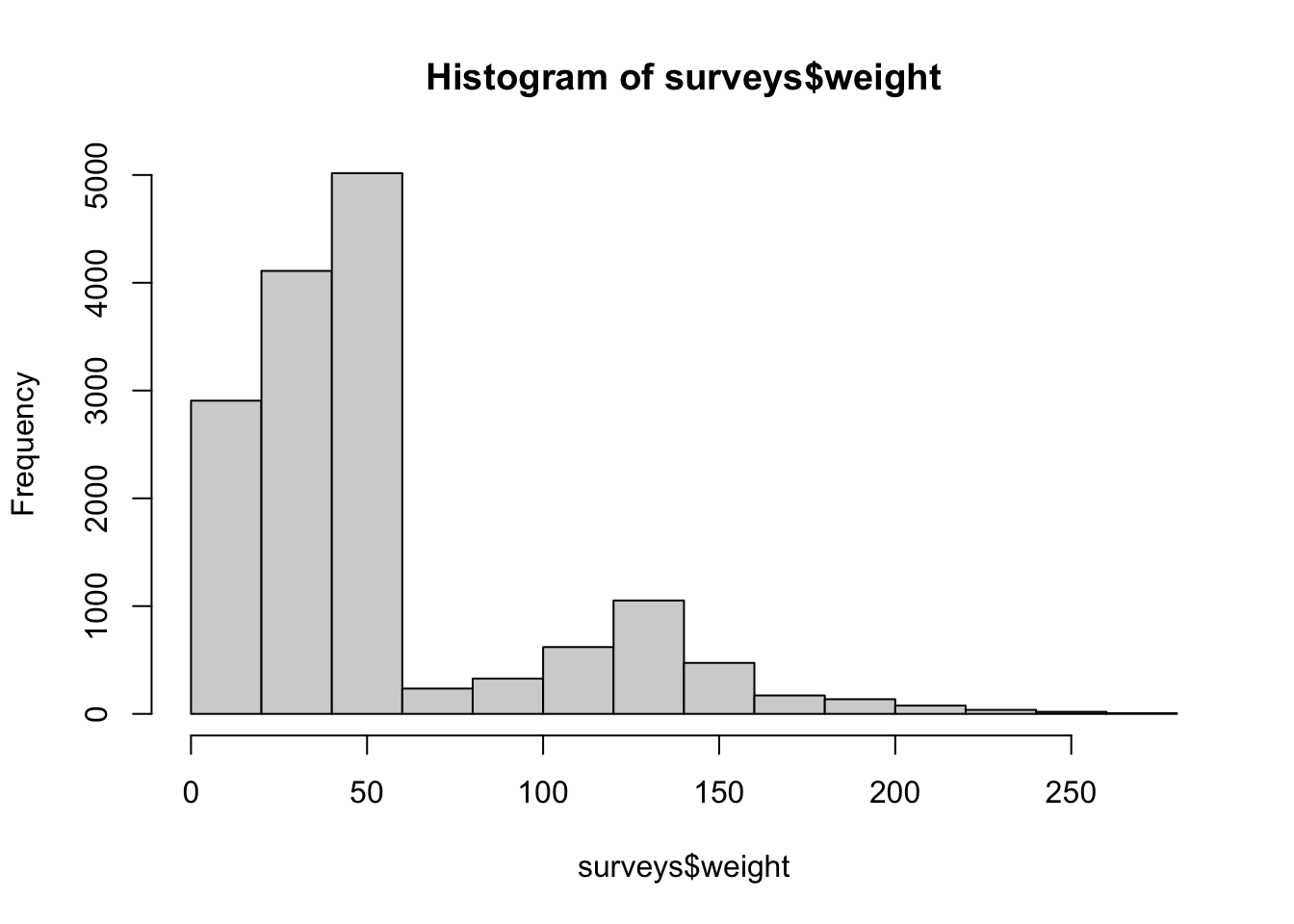
Sometimes we want to generate vectors ourselves, and there are a few functions that can help us to do this.
First, putting : between two numbers will generate a vector of integers starting with the first number and ending with the last.
# Generate 1-10
1:10
[1] 1 2 3 4 5 6 7 8 9 10The seq() function allows you to generate similar sequences, but changing by any amount.
seq(from = 0, to = 1, by = 0.1) [1] 0.0 0.1 0.2 0.3 0.4 0.5 0.6 0.7 0.8 0.9 1.0seq(from = 0, to = 5, length.out = 11) [1] 0.0 0.5 1.0 1.5 2.0 2.5 3.0 3.5 4.0 4.5 5.0Finally, the rep() function allows you to repeat a value, or even a whole vector, as many times as you want, and works with any type of vector.
rep("a", times = 3)[1] "a" "a" "a"rep(1:3, each = 2)[1] 1 1 2 2 3 3Yesterday we used fct_reorder()to put the genera in order of median weight. That quietly turned genus into a factor. Let’s look at what a factor actually is, because they can be confusing to work with sometimes.
In general, it’s best to leave your categorical data as a character (or numeric) vector until you need to use a factor. You might need a factor because:
We can tell R we want a specific column to be a factor by passing the column to the factor() function, and reassigning the result back into the data frame.
surveys$sex <- factor(surveys$sex)
class(surveys$sex)
[1] "factor"Let’s see what order the levels appear in on a plot.
ggplot(data = surveys, mapping = aes(x = sex, y = weight)) +
  geom_boxplot() +
  theme_bw()
Warning: Removed 1692 rows containing non-finite outside the scale range
(`stat_boxplot()`).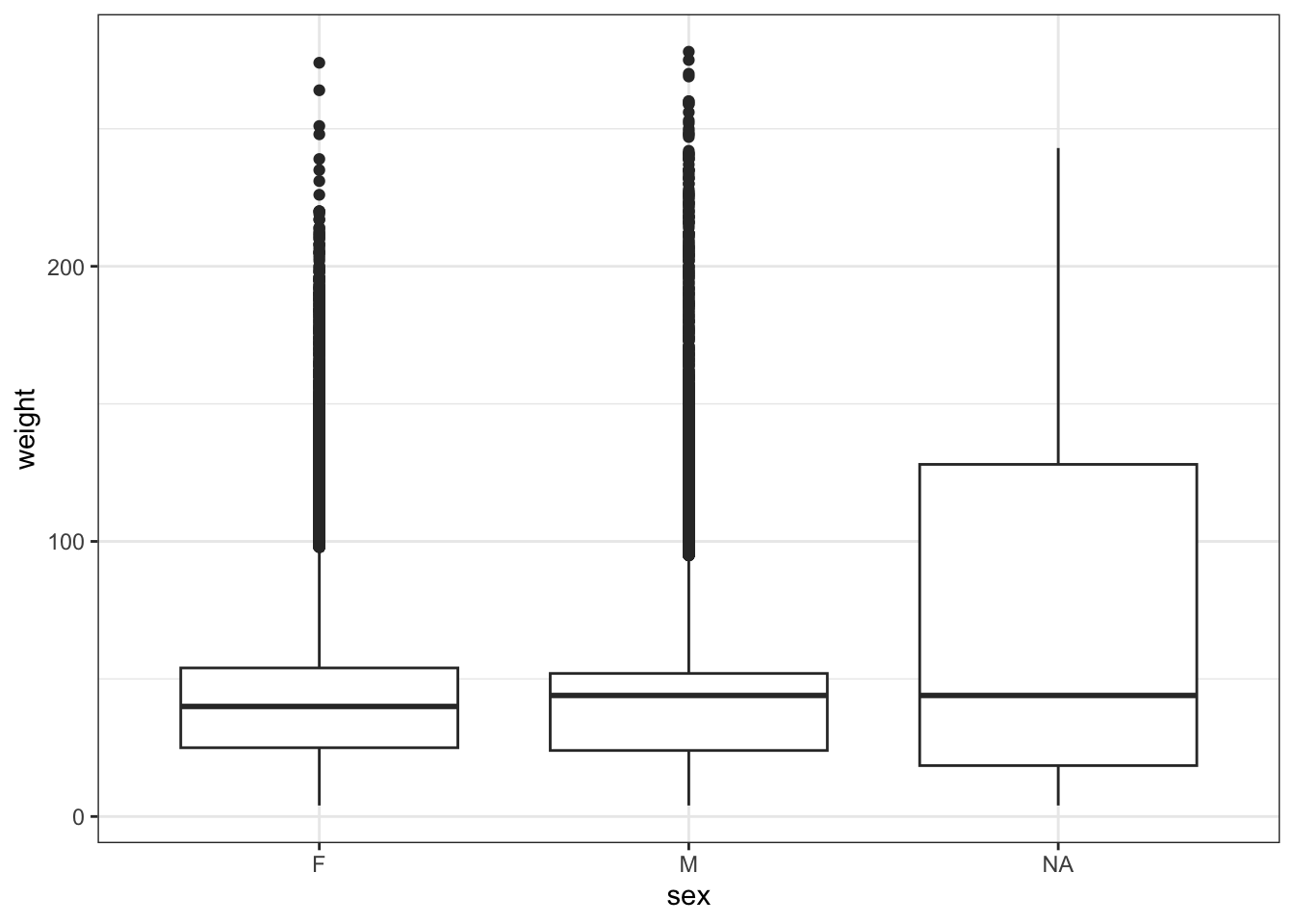
Females are plotted before males, because factor() puts the levels in alphabetical order by default. The third box, NA, is the animals whose sex wasn’t recorded. We’ll deal with those shortly.
levels(surveys$sex)[1] "F" "M"Next we’ll use some functions from the forcats package, which we’ve already loaded when we loaded the tidyverse package.
We can change the order of the levels (this can be useful to order the levels on plots).
surveys$sex <- fct_relevel(surveys$sex, c("M", "F"))
levels(surveys$sex)
[1] "M" "F"We can confirm this in our plot.
ggplot(data = surveys, mapping = aes(x = sex, y = weight)) +
  geom_boxplot() +
  theme_bw()
Warning: Removed 1692 rows containing non-finite outside the scale range
(`stat_boxplot()`).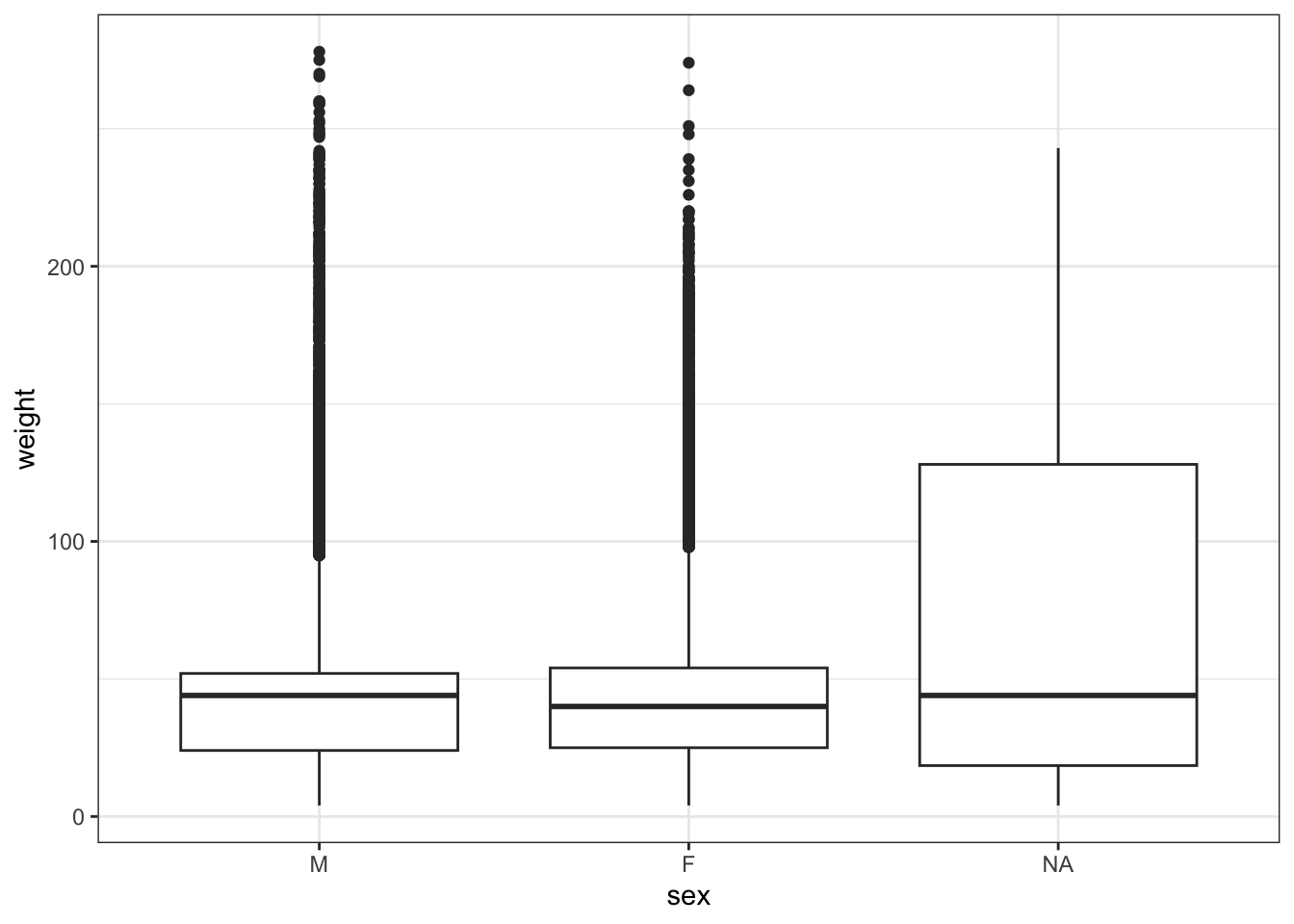
Missing values (NA) are not counted as a levels, as levels() didn’t list them, even through ggplot2 drew a box for them. So, if we want NA to be a proper caegory, we can turn it into a level.
surveys$sex <- fct_na_value_to_level(surveys$sex, "unknown")
levels(surveys$sex)
[1] "M" "F" "unknown"We can rename the levels too. Note the order inside fct_recode(): the new name goes on the left and the old name on the right.
surveys$sex <- fct_recode(surveys$sex, "male" = "M", "female" = "F")
levels(surveys$sex)
[1] "male" "female" "unknown"We can also convert a factor back to a character vector.
surveys$sex <- as.character(surveys$sex)
class(surveys$sex)
[1] "character"That’s why we suggested leaving categorical data as character until you need a factor: a factor’s fixed set of levels is powerful when you want it and annoying when you don’t.