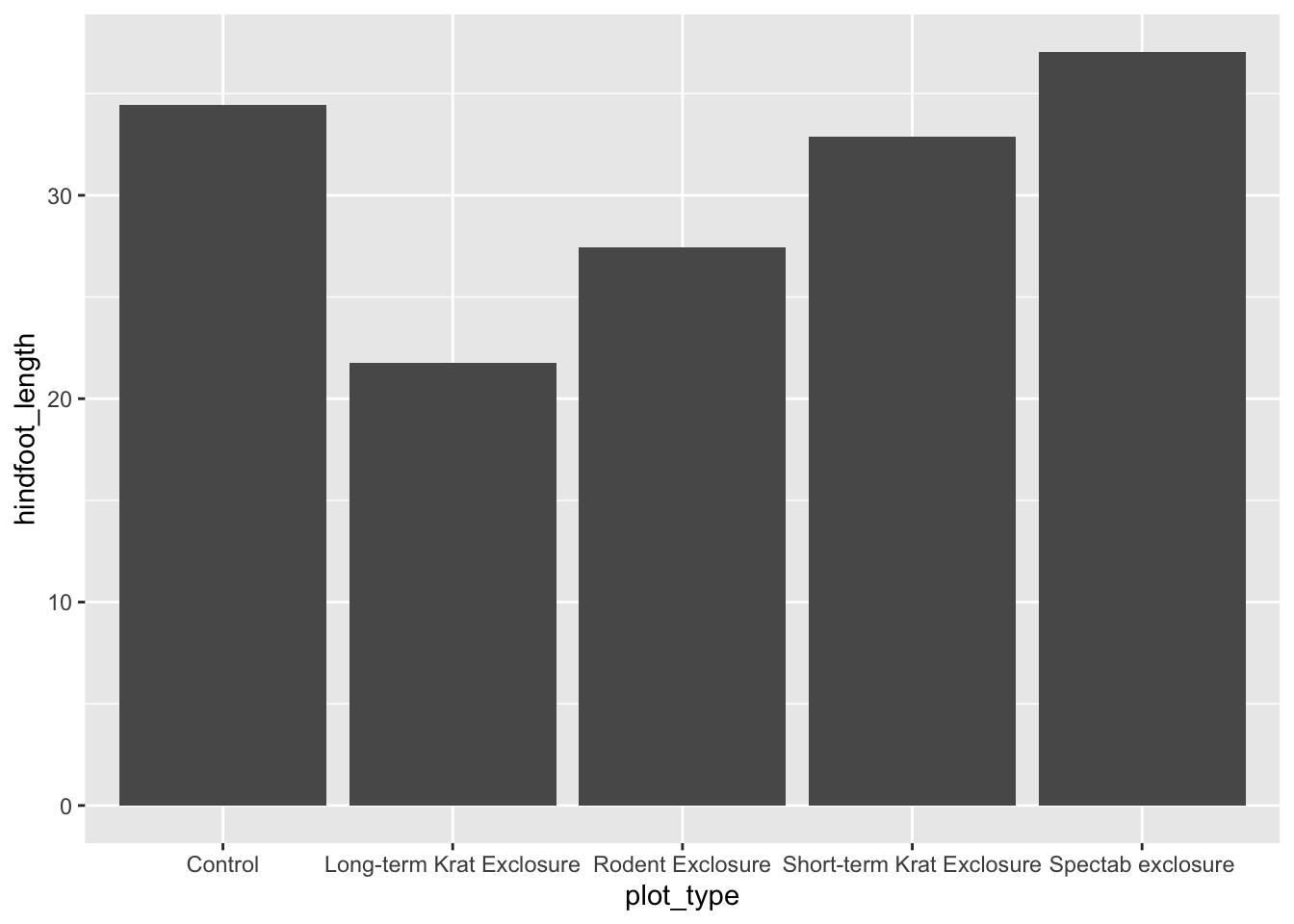
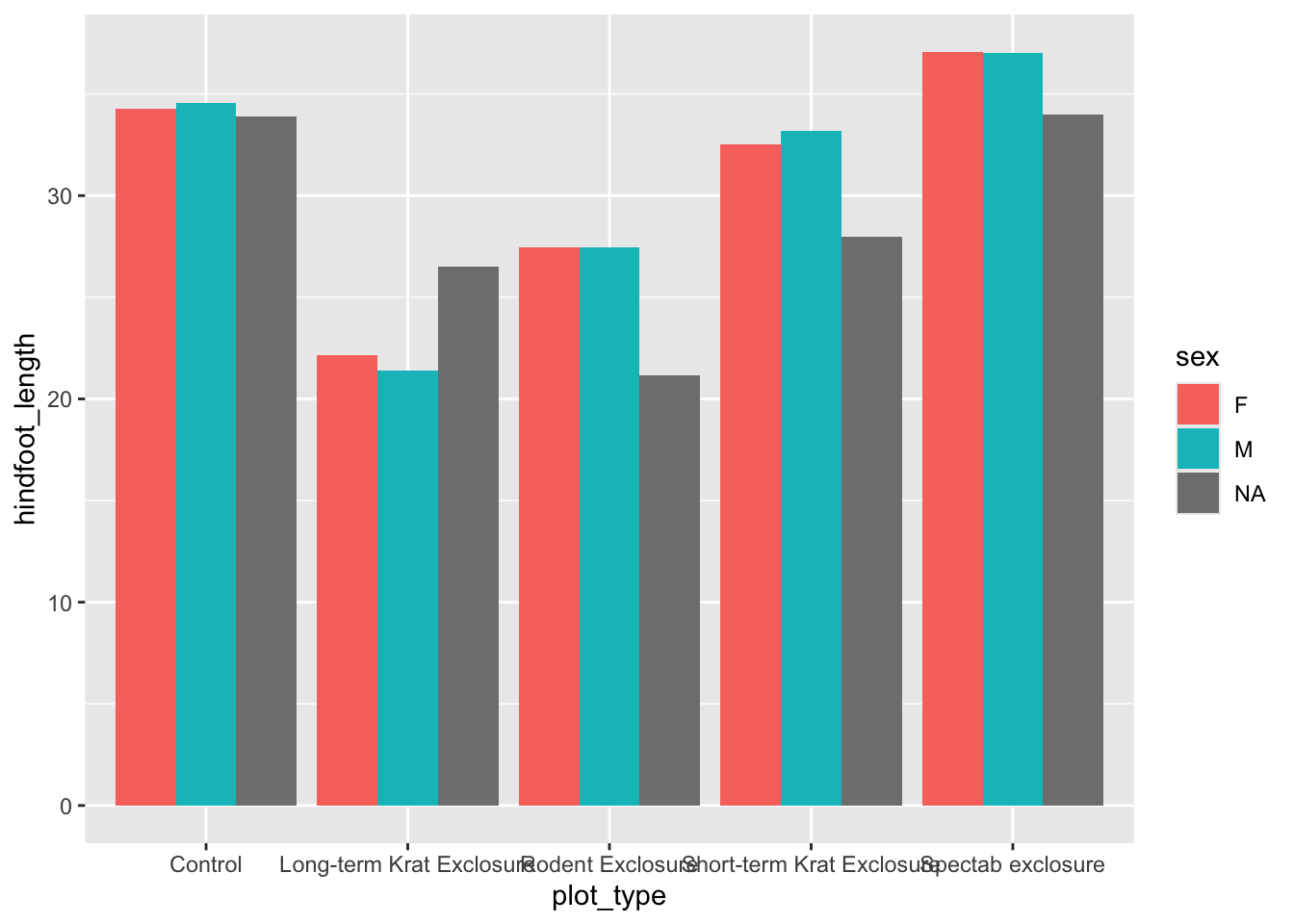
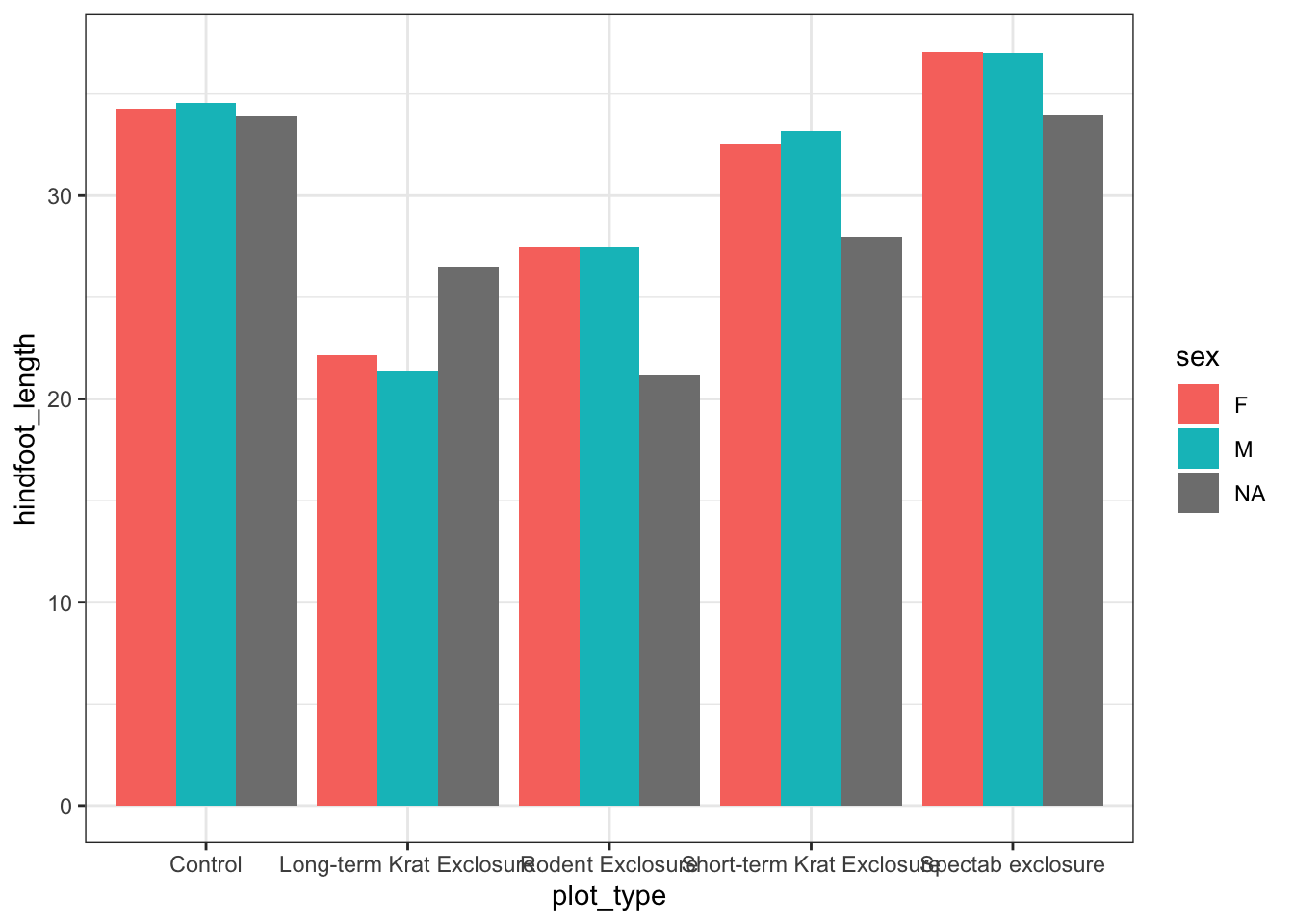
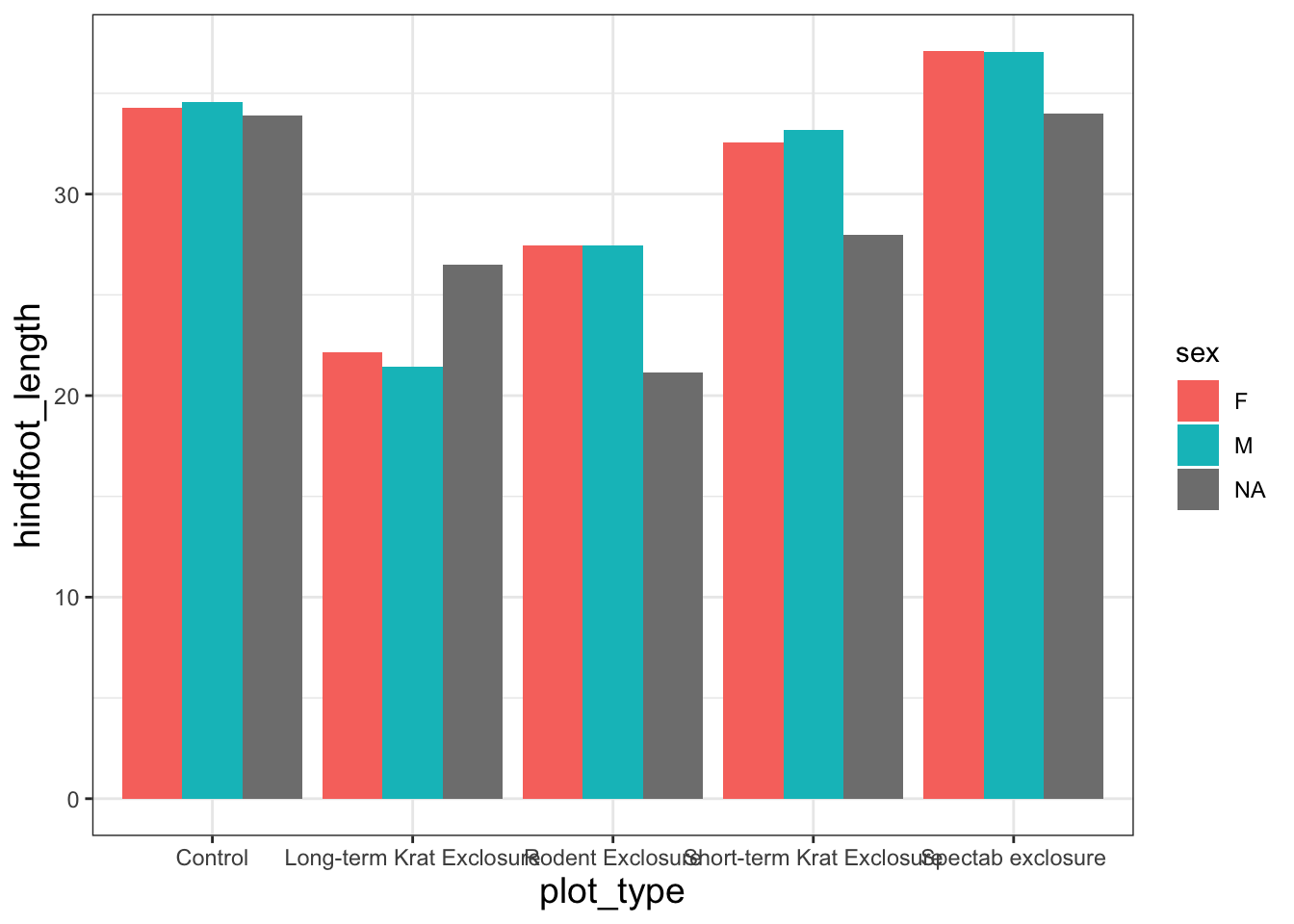
We’re going to create some plots using functions from the ggplot2 package. R packages usually contain functions related to a specific activity, which in this case is data visualisation, and also documentation which outlines how the functions work.
We’ve already installed the ggplot2 package. It was installed as part of the tidyverse package, which is a popular collection of packages developed by the same group of people.
Reading In Data
Each time we start a new RStudio session, we need to load the packages that we want to use, and to do this we use library().
library(tidyverse)
── Attaching core tidyverse packages ──────────────────────── tidyverse 2.0.0 ──
✔ dplyr     1.2.1     ✔ readr     2.2.0
✔ forcats   1.0.1     ✔ stringr   1.6.0
✔ ggplot2   4.0.3     ✔ tibble    3.3.1
✔ lubridate 1.9.5     ✔ tidyr     1.3.2
✔ purrr     1.2.2
── Conflicts ────────────────────────────────────────── tidyverse_conflicts() ──
✖ dplyr::filter() masks stats::filter()
✖ dplyr::lag()    masks stats::lag()
ℹ Use the conflicted package (<http://conflicted.r-lib.org/>) to force all conflicts to become errors
After loading packages, the next thing we often need to do is to load some data into R. To load our spreadsheet in we use the read_csv() function from the readr package (which is loaded as part of the tidyverse package), and we’ll store it in an object called surveys.
Rows: 16878 Columns: 13
── Column specification ────────────────────────────────────────────────────────
Delimiter: ","
chr (6): species_id, sex, genus, species, taxa, plot_type
dbl (7): record_id, month, day, year, plot_id, hindfoot_length, weight

ℹ Use `spec()` to retrieve the full column specification for this data.
ℹ Specify the column types or set `show_col_types = FALSE` to quiet this message.
You’ll notice some useful information printed in the console, including the number of rows and columns, and the number of different column types. chr refers to character, or columns containing text values, while dbl refers to double, another name for numeric values.
Now we can see surveys in our environment pane and we can click on it to take a look. You can also run the command, view(), to open this spreadsheet-style tab to review the data.
view(surveys)
This dataset is taken from the Portal Project, a long-term ecological study from Portal, Arizona, in the Chihuahuan desert, which measures features of desert-dwelling mammals from different plots. Each row is one animal, with columns for the collection dates, species, sex, hindfoot lengths, weights and the type of plot it was caught in.
Note, there are some missing values in the hindfoot_length and weight columns (labelled as NA) .
When we’re looking at large or unfamiliar datasets, it’s useful to do some quick checks to get an idea of the kind of data we’re working with. For example, we can look at the first and last 6 rows of our data using head() and tail():
head(surveys)
# A tibble: 6 × 13
  record_id month   day  year plot_id species_id sex   hindfoot_length weight
      <dbl> <dbl> <dbl> <dbl>   <dbl> <chr>      <chr>           <dbl>  <dbl>
1         1     7    16  1977       2 NL         M                  32     NA
2         2     7    16  1977       3 NL         M                  33     NA
3         3     7    16  1977       2 DM         F                  37     NA
4         4     7    16  1977       7 DM         M                  36     NA
5         5     7    16  1977       3 DM         M                  35     NA
6         6     7    16  1977       1 PF         M                  14     NA
# ℹ 4 more variables: genus <chr>, species <chr>, taxa <chr>, plot_type <chr>
tail(surveys)
# A tibble: 6 × 13
  record_id month   day  year plot_id species_id sex   hindfoot_length weight
      <dbl> <dbl> <dbl> <dbl>   <dbl> <chr>      <chr>           <dbl>  <dbl>
1     16873    12     5  1989       8 DO         M                  37     51
2     16874    12     5  1989      16 RM         F                  18     15
3     16875    12     5  1989       5 RM         M                  17      9
4     16876    12     5  1989       4 DM         M                  37     31
5     16877    12     5  1989      11 DM         M                  37     50
6     16878    12     5  1989       8 DM         F                  37     42
# ℹ 4 more variables: genus <chr>, species <chr>, taxa <chr>, plot_type <chr>
For simplicity, we will remove these NAs, and call our new object survData. It’s worth pointing out, anything we do to the data in R is not changed in the original file we read in.
survData <-na.omit(surveys)head(survData)
# A tibble: 6 × 13
  record_id month   day  year plot_id species_id sex   hindfoot_length weight
      <dbl> <dbl> <dbl> <dbl>   <dbl> <chr>      <chr>           <dbl>  <dbl>
1        63     8    19  1977       3 DM         M                  35     40
2        64     8    19  1977       7 DM         M                  37     48
3        65     8    19  1977       4 DM         F                  34     29
4        66     8    19  1977       4 DM         F                  35     46
5        67     8    19  1977       7 DM         M                  35     36
6        68     8    19  1977       8 DO         F                  32     52
# ℹ 4 more variables: genus <chr>, species <chr>, taxa <chr>, plot_type <chr>
TipWhat is na.omit()?
The na.omit() function will remove all rows for which an NA exists anywhere in the row (i.e., hindfoot_length, weight or sex in this case). This gives us a nice clean dataset for today, but you may want to use it cautiously on your own data.
Plotting with ggplot2
The ‘gg’ in ggplot2 stands for “grammar of graphics”, which refers to a particular way of creating plots using a consistent vocabulary and layering different elements on. Therefore, we only need small changes to our code if the underlying data changes or we decide to make a box plot instead of a scatter plot. This approach helps you create publication-quality plots with minimal adjusting and tweaking.
ggplot plots are built step by step by adding new layers, which allows us to customise and test as we go. The basic format for the ggplots template is as follows:
Specify the data as a dataframe in long format
Map variables (i.e., map which column to the x or y axis)
Choose the geometry function to create the plot type
We’re going to use the following template to build our plots:
First we need to specify the data we want to use. Next, we can see that the ggplot() call has a function nested within it, aes(), which relates to aesthetic mappings. This is where we specify which parts of the data should be mapped to different axes on our plot. Finally, we need to specify the geometry we want to use, or in other words, the plot type. The geometry function we use is added to the end with a + sign.
Let’s go through step by step. First we need to specify the dataset.
ggplot(data = survData)
We get a blank plot because we haven’t told ggplot() which variables we want to correspond to parts of the plot.
Let’s map variables to axes:
ggplot(data = survData, mapping =aes(x = weight, y = hindfoot_length))
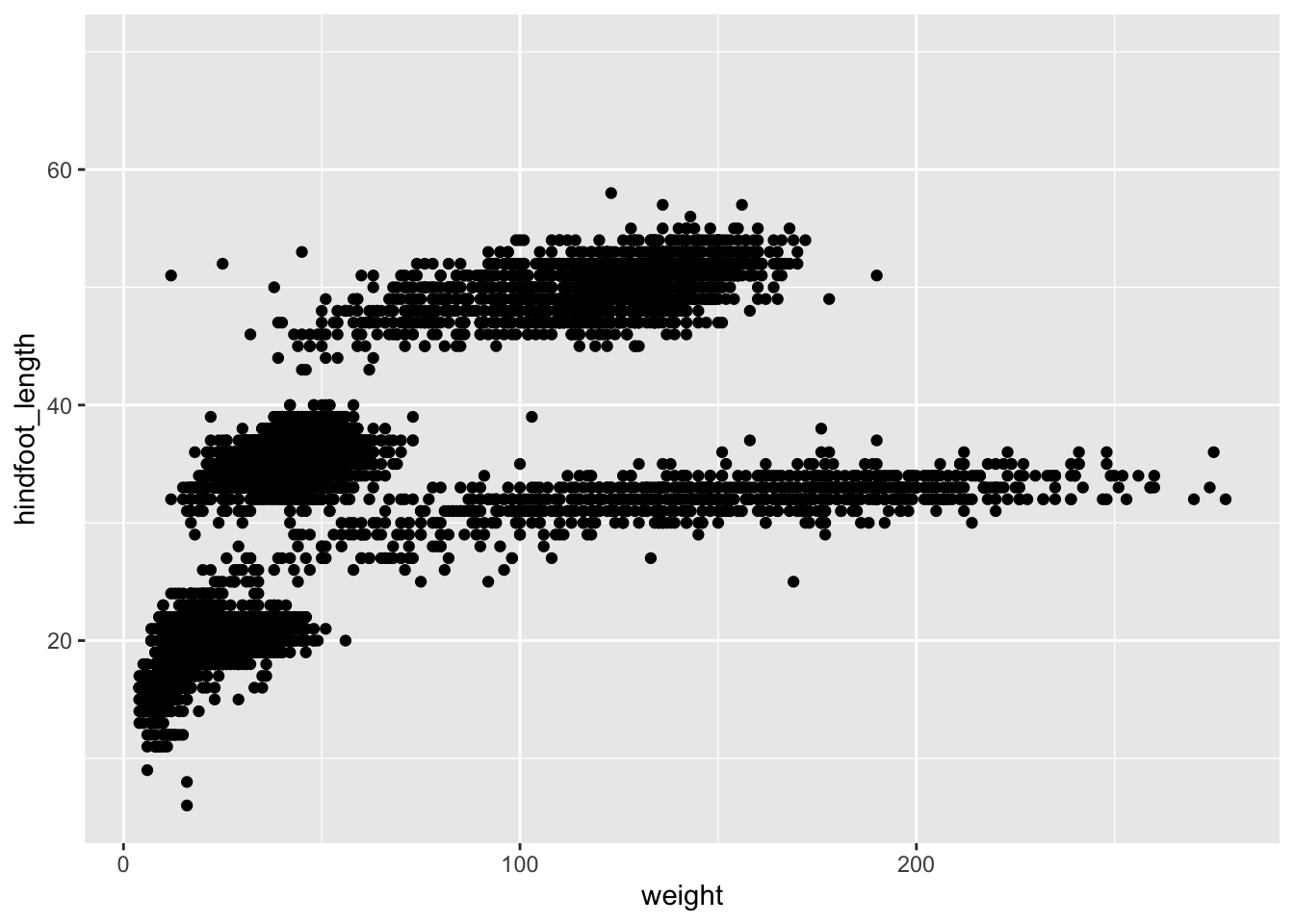
Now we’ve got a plot with x and y axes corresponding to variables from surveys. However, we haven’t specified how we want the data to be displayed. We do this using geom_ functions, which specify the type of geometry we want, such as points, lines, or bars. Because geom_point() is a new layer, we add it to our plot using the + sign.
It is good practice to use indentation to format our code, and this becomes essential as our code gets longer. Each time you reach a new argument (separated by a comma) hit enter or return, and R will automatically format the code on a new line. Put each layer on a new line, ending the previous line with the + sign. Try re-writing the code above as below, then run it to generate the plot.
# Two numeric variables - scatter plotggplot(data = survData, mapping =aes(x = weight, y = hindfoot_length)) +geom_point()
TipWhat is # doing here?
Comment (#): Text in your script preceded by a hashtag. R ignores this text, allowing you to write a brief note about why you did something the way you did.
NoteWhat if our dataset contains NAs
Let’s try to plot our original object surveys, which contains NAs in the dataset:
Warning: Removed 3081 rows containing missing values or values outside the scale range
(`geom_point()`).
You may notice a warning that missing values were removed, although we got the same plot.
This is because if a variable necessary to make the plot is missing from a given row of data (in this case, hindfoot_length or weight), that observation can’t be plotted. ggplot2 warns us that this has happened to ensure we know there are missing values.
Another common type of message is an error, which means R can’t execute the command. This is commonly due to misspelling, or missing punctuation such as brackets or commas.
Try different geom functions
This is where the grammar of graphics pays off. To make a completely different kind of plot, we keep the same template and change only the geom (and sometimes which columns we map). ggplot2 has more than 40 geoms; today we’ll try three that you will use most often.
Our scatter plot used geom_point() to show the relationship between two numeric variables. Let’s see what happens when we change the geom, and nothing else.
1. One numeric variable: a histogram shows the distribution of a single column, so we only map x:
`stat_bin()` using `bins = 30`. Pick better value `binwidth`.
Notice the message: ggplot2 chose 30 bins for us and suggests we pick a better value. We can do that with the bins argument (or binwidth).Let’s use bins = 50 to divide the data into 50 bars:
2. Counts of a categorical variable: a bar chart counts how many rows fall into each category. We only map x, and geom_bar() does the counting:
# Counts of a categorical variable - bar chartggplot(data = survData,mapping =aes(x = plot_type)) +geom_bar()
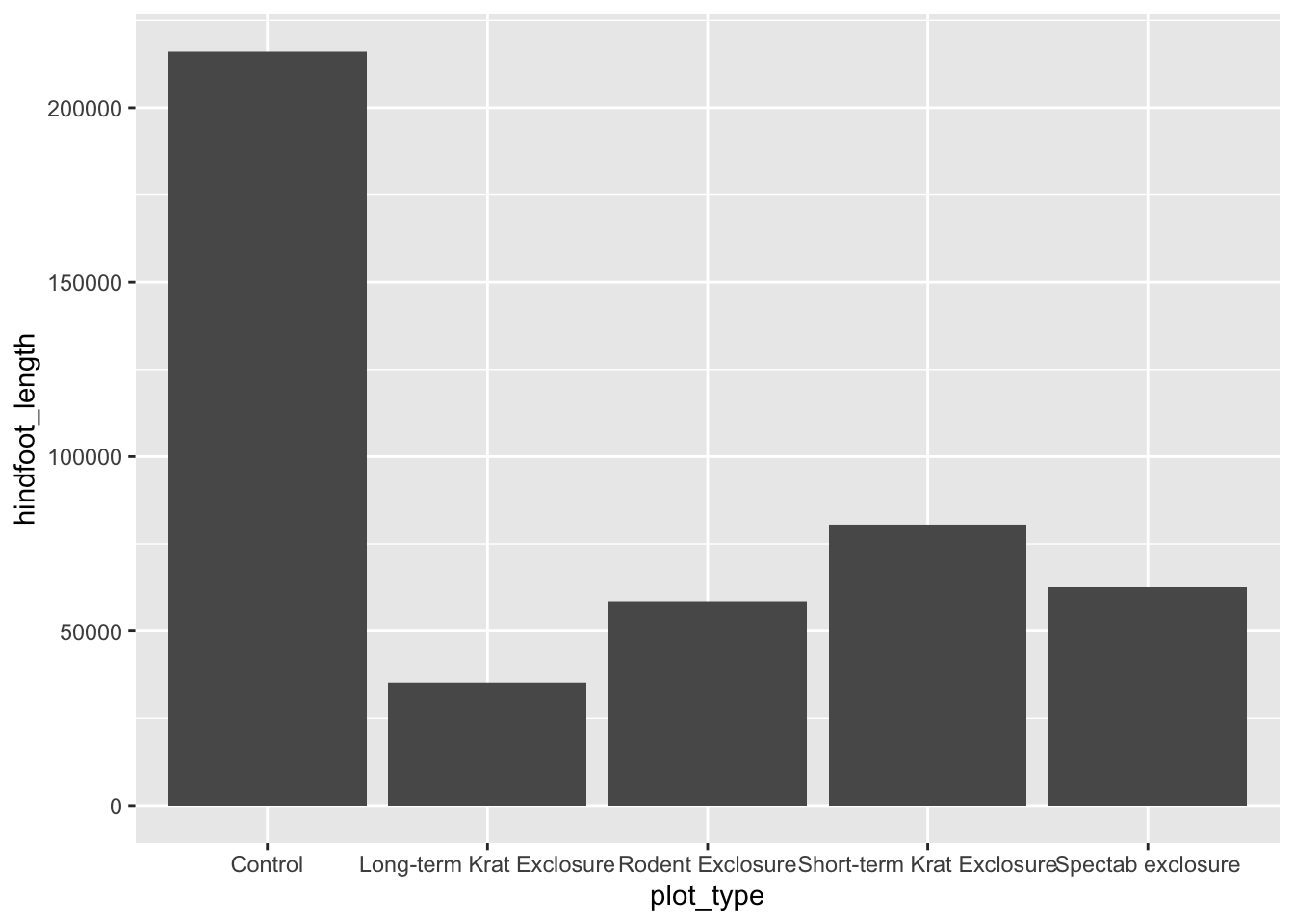
Tipgeom_bar() vs geom_col()
geom_bar()counts rows for you, so it only needs x. If your data already contains the number you want to plot (for example a column of means you calculated), use geom_col() and map that column to y.
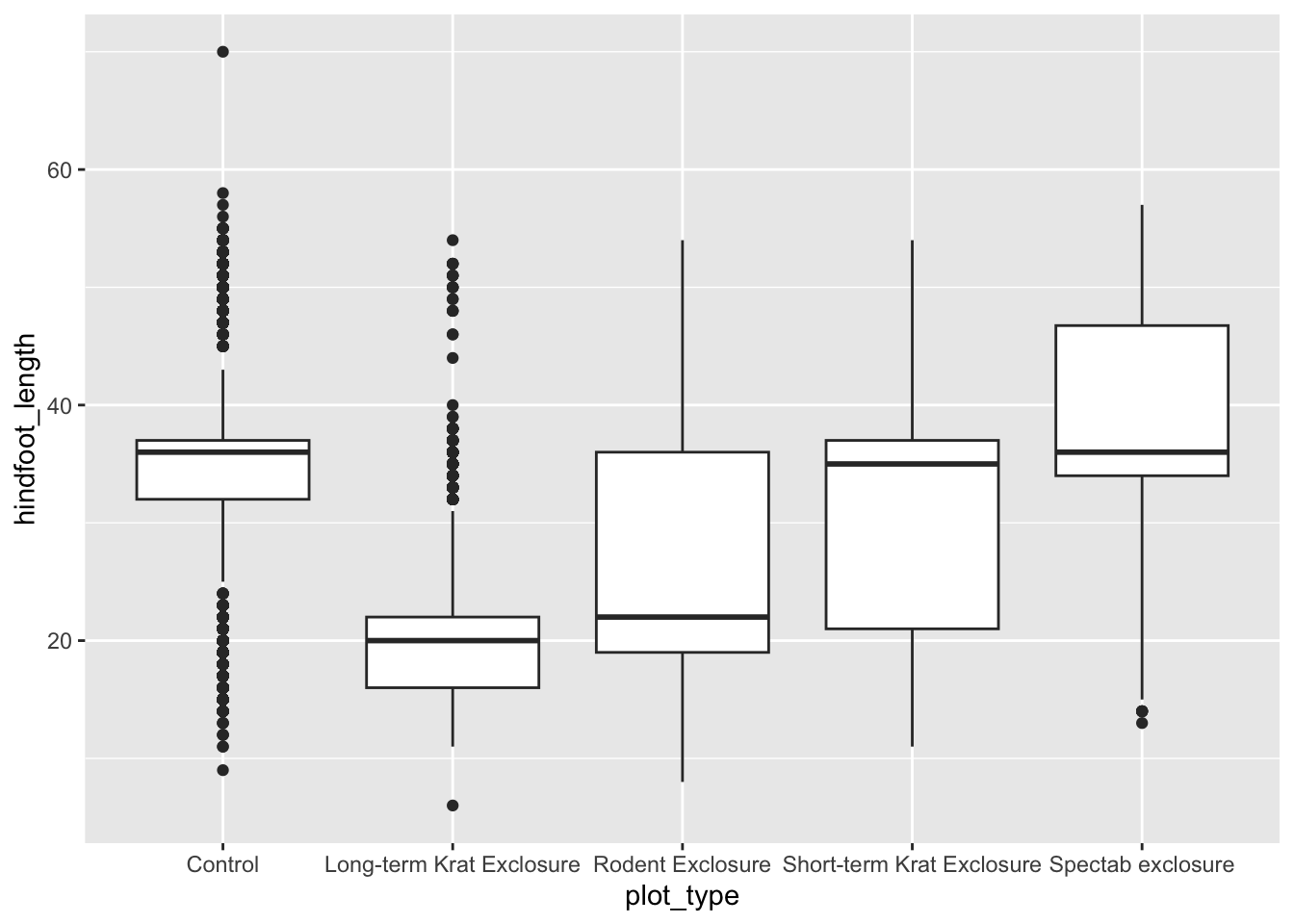
3. A numeric variable across categories: a boxplot summarises the distribution of a numeric variable within each group of a categorical variable. We map the category to x and the number to y:
# A numeric variable across categories - boxplotggplot(data = survData,mapping =aes(x = plot_type, y = hindfoot_length)) +geom_boxplot()
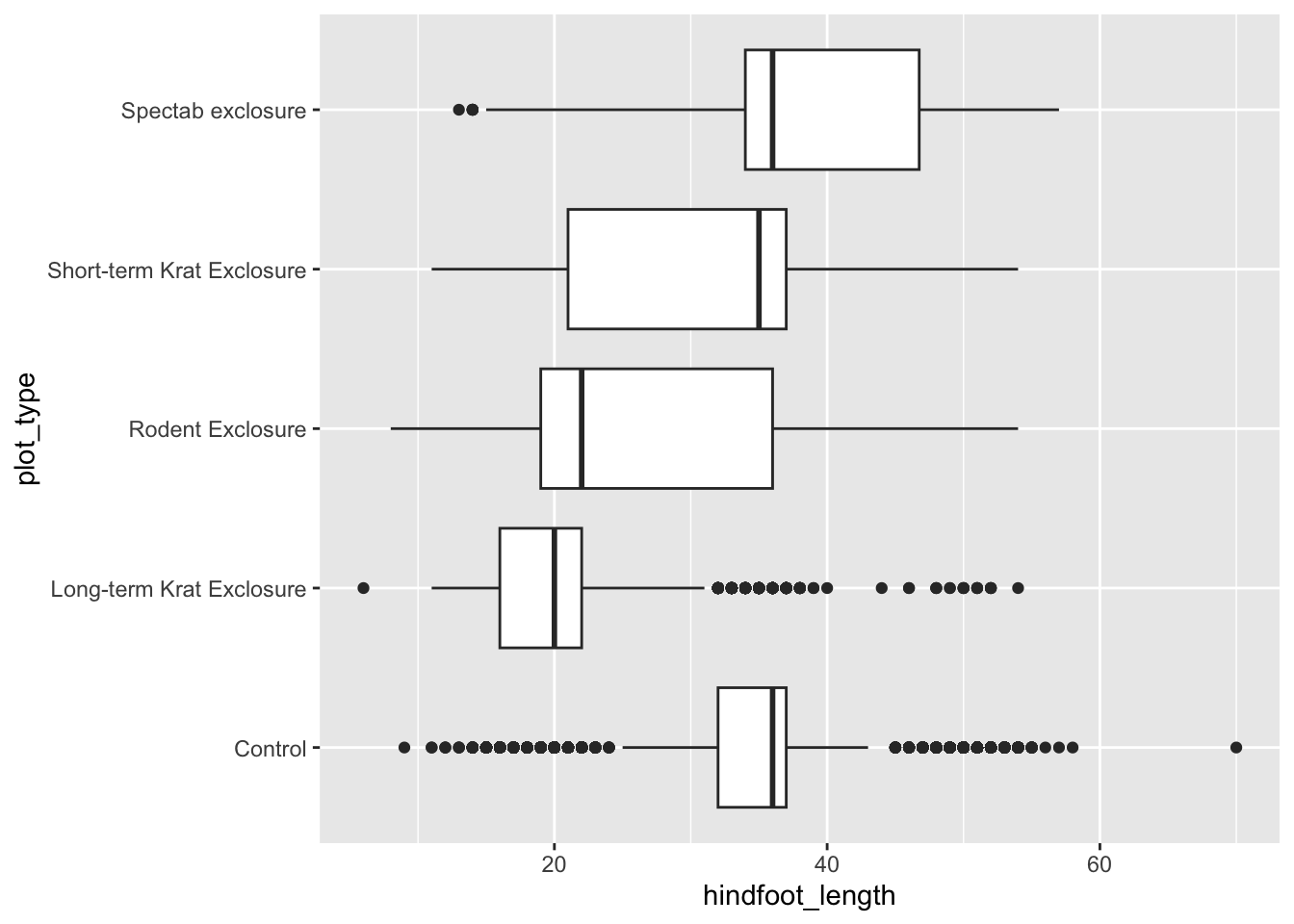
You may have noticed that the long labels on the x axis overlap. A quick fix is to put the categorical variable on the y axis instead.
# A numeric variable across categories - boxplot, categories on the y axisggplot(data = survData,mapping =aes(y = plot_type, x = hindfoot_length)) +geom_boxplot()
WarningChallenge exercise: Change one thing (5 minutes)
Starting from the code above, make each of the following plots by changing as little as possible:
A boxplot of weight for each sex.
A histogram of hindfoot_length.
Take your boxplot from (1) and turn it into a violin plot. (Hint: the geom is called geom_violin().)
TipSolution
# 1. Boxplot of weight by sex: change the two column namesggplot(data = survData,mapping =aes(x = sex, y = weight)) +geom_boxplot()# 2. Histogram of hindfoot length: change the column nameggplot(data = survData,mapping =aes(x = hindfoot_length)) +geom_histogram()# 3. Violin plot: change only the geomggplot(data = survData,mapping =aes(x = sex, y = weight)) +geom_violin()
In each case we swapped one geom name or one column name — the rest of the template stayed the same.
Knowing how to make a plot is only half the job. The other half is deciding which plot answers your research question. Two things determine that:
Your question: are you looking at the distribution of one variable, a comparison between groups, a relationship between two variables, a change over time, or parts of a whole?
Your data types: how many variables are involved, and is each one numeric or categorical?
Once you know those two things, the choice of geom usually follows.
From Data to Viz is an excellent tool. It is a decision tree: you start from what your data looks like (numeric, categorical, a mix, time series, maps, networks), follow the branches, and it leads you to the plot types that suit it. Let’s take a look at it together.
Three things to notice on the site:
Each plot type has a short description of when to use it and its common mistakes.
Every plot type also has an R graph gallery link with ready-made ggplot2 code. This is how most people actually find the code for a plot they haven’t made before.
The code you find will use their dataset and column names. To reuse it, map it back onto our template: replace the data, replace the column names inside aes(), and keep the geom and any extra layers.
We find this website a useful tool for learning ggplot2 and designing publication figures. It not only gives you the R code, but also adds a layer of decision-making: which figure best fits your data and your research question.
Building a better plot step by step
So far we’ve made quick plots to look at our data. Now let’s take one plot all the way to something you could put in a paper or a thesis.
Let’s go back to our survey dataset, survData. We’d like to draw a figure to answer our research questions:
How do body weights compare between the different rodent genera in our surveys? And does the plot type make any difference?
That’s one numeric variable (weight) across the categories of one categorical variable (genus), so a boxplot is a good starting point. We’ll improve it in small steps, running the code each time so we can see what each change does.
Step 1: The basic boxplot
ggplot(data = survData,mapping =aes(x = genus, y = weight)) +geom_boxplot()
It works, but it isn’t very readable. The genus names overlap, and most of the boxes are squashed at the bottom of the plot because a few animals are very heavy.
Step 2: A log scale for skewed data
When data is skewed like this (i.e., most values are small, with a long tail of very large ones), a log scale spreads out the small values and pulls in the large ones, so every group gets some space. We add a scale layer, scale_y_log10(), which keeps the real values (grams) on the axis labels.
The genus names are long and overlap on the x axis. Category labels are much easier to read on the y axis. We saw this trick earlier: swap the x and y mappings. Because weight is now on the x axis, the scale layer also becomes scale_x_log10().
At the moment the genera are in alphabetical order, which is not very meaningful. Ordering groups by their median makes the comparison much easier to read.
To do this, we tell R the order of the categories using the fct_reorder() function from the forcats package (part of the tidyverse). It converts genus into a special type of categorical variable called a factor, ordered by the median weight. We’ll learn more about factors tomorrow.
For now, we replace the genus column in survData with the reordered version:
<- stores the result on the right into the name on the left. Here the name is an existing column, survData$genus, so that column is overwritten with the reordered version. The original CSV file is not changed.
Keyboard shortcut for <-: Alt + - on Windows, Option + - on Mac.
The genera now run from lightest (bottom) to heaviest (top), and the plot tells a story at a glance.
Step 5: Add labels
Now that the structure is right, let’s make it look good, starting with the words. labs() sets the title and axis labels in one go. Good labels say what is plotted and the units.
A theme controls everything on the plot that isn’t data: the background, the grid lines, the text. ggplot2 comes with several complete themes. Let’s swap the default grey background for theme_minimal():
Try theme_bw(), theme_classic(), theme_light() or theme_dark() in place of theme_minimal(). Adding theme(...) after a complete theme, as we do next, lets you override just the parts you want to change.
A complete theme is a good start, but we usually want to adjust a few details. The theme() function lets us change individual parts of the plot. Each argument names a part of the plot (plot.title, axis.title, panel.grid.major.y, and many more) and we give it an element function describing what it should look like: element_text() for text, element_line() for lines, or element_blank() to remove it altogether.
Let’s make the title bold and centred (hjust = 0.5), and see how it looks like. Then, because the y axis is categorical, we don’t need the horizontal grid lines, let’s remove them using panel.grid.major.y:
Our code is getting long, and we’re going to keep adding to it. It’s a good idea to store everything except the geom_boxplot() in an object called plot_weight. That way we can try different geoms on top of the same base without retyping it. Running the object’s name followed by + geom_boxplot() gives us the same plot as before.
# Create object, plot_weight, without geomplot_weight <-ggplot(data = survData,mapping =aes(y = genus, x = weight)) +scale_x_log10() +labs(title ="Body weight varies widely between rodent genera",x ="Weight (g, log scale)",y ="Genus") +theme_minimal() +theme(plot.title =element_text(face ="bold", hjust =0.5),panel.grid.major.y =element_blank())# Use + to add geom to draw your plotplot_weight +geom_boxplot()
TipWhat are an object and <-?
Object: A named “container” in R that holds information. Almost everything in R, from a single number to a giant dataset, is an object. We will explain it a little more tomorrow.
Assignment (<-): The “left arrow” operator used to store a value into an object. For example, x <- 10 means “put the number 10 into an object named x.” Alt + - on Windows, Option + - on Mac.
Step 7: Colour the boxes by genus
Our plot is clear, but a little plain. Let’s colour each box by its genus. So far every argument we have given a geom has been a fixed value that applies to the whole plot, like bins = 50 in the histogram earlier. To make the colour depend on the data, we need a mapping, and mappings always go inside aes(). We put the aes() inside geom_boxplot() so that it applies to that layer only.
This is the most common ggplot2 mix-up. Inside aes(), you name a column and ggplot2 maps its values to colours, adding a legend: aes(fill = genus). Outside aes(), you give a fixed value that applies to the whole layer: fill = "lightblue".
If you write aes(fill = "lightblue"), ggplot2 treats "lightblue" as a one-category variable and you get salmon-pink boxes with a legend saying “lightblue”. Try it!
Step 8 (if time): Split the plot by plot type
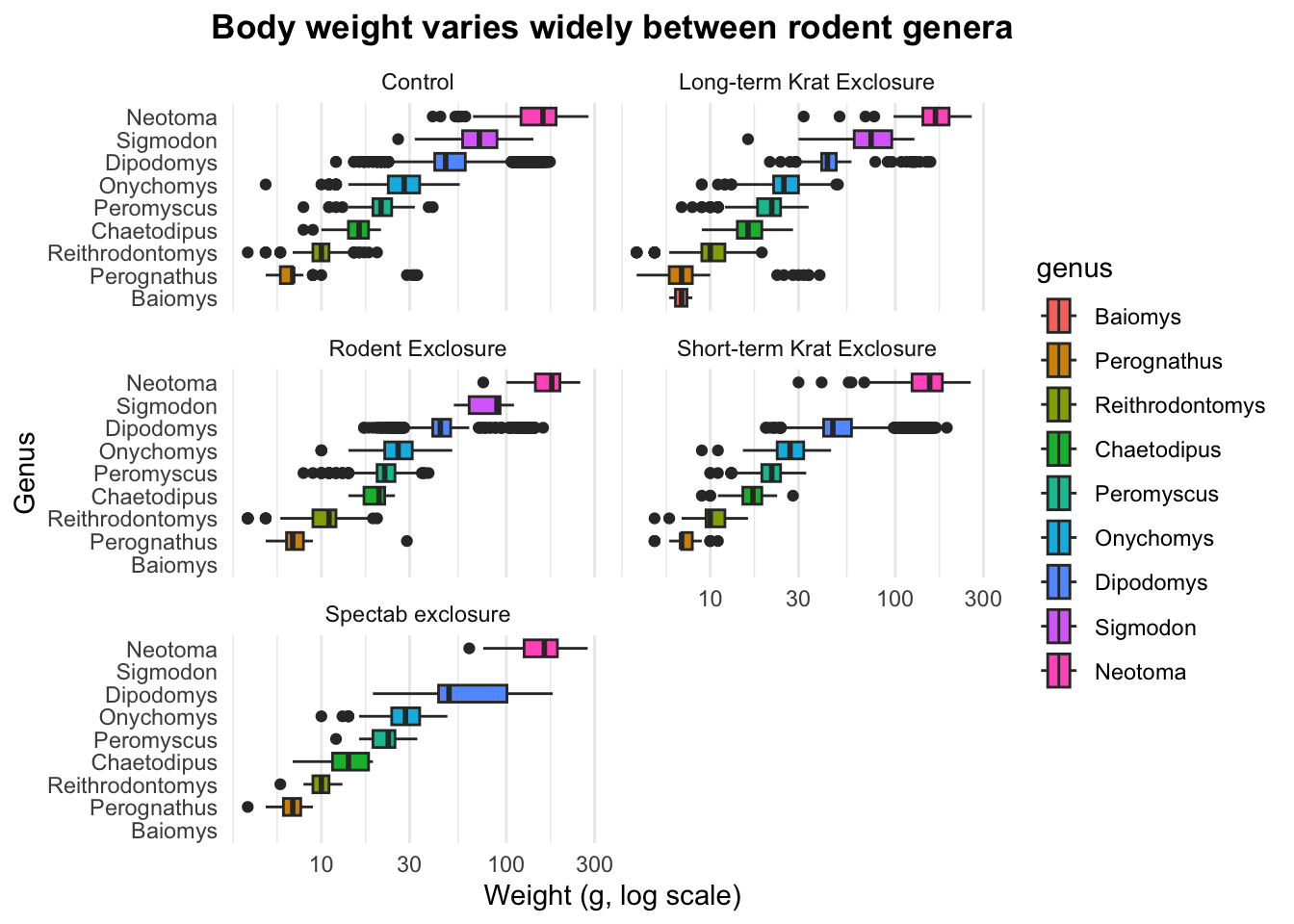
Our surveys come from five different plot types: the control plots, and four kinds of experimental exclosure that keep out particular animals.
Are the weights the same in each? Rather than squeezing everything into one panel, we can make a small copy of the plot for each plot type using facet_wrap(). Inside it we name the column to split by within vars(), and ncol = 2 arranges the panels in two columns so the panel titles have room.
Every panel shares the same axes, so the panels can be compared directly. Within each genus the weights are much the same in every plot type, so the exclosures don’t seem to change how heavy the animals are. What does change is which animals are there: some rows are empty because that genus was never caught in that plot type, and the Dipodomys box (the kangaroo rats, or “Krats”) is much wider in the Spectab exclosure — a hint that more than one species is hiding inside that genus.
If you made this plot, save it as the final version so that the export in the next section uses it:
If you want, you can change the layout with ncol or nrow, for example facet_wrap(vars(plot_type), ncol = 3) for three across. Try it yourself!
Going further (optional reading)
Want a fancier figure that shows not only the summary but also the individual observations? We can do that by layering more than one geom in the same plot.
The sections below build on plot_weight from Step 6. They aren’t part of the live session, but everything you need to follow them is on this page.
NoteShow the data, not just the summary
A boxplot is a summary: it hides how many observations are in each group and what their spread really looks like. Layering the raw data on the plot fixes that. We’ll build this up in five small moves.
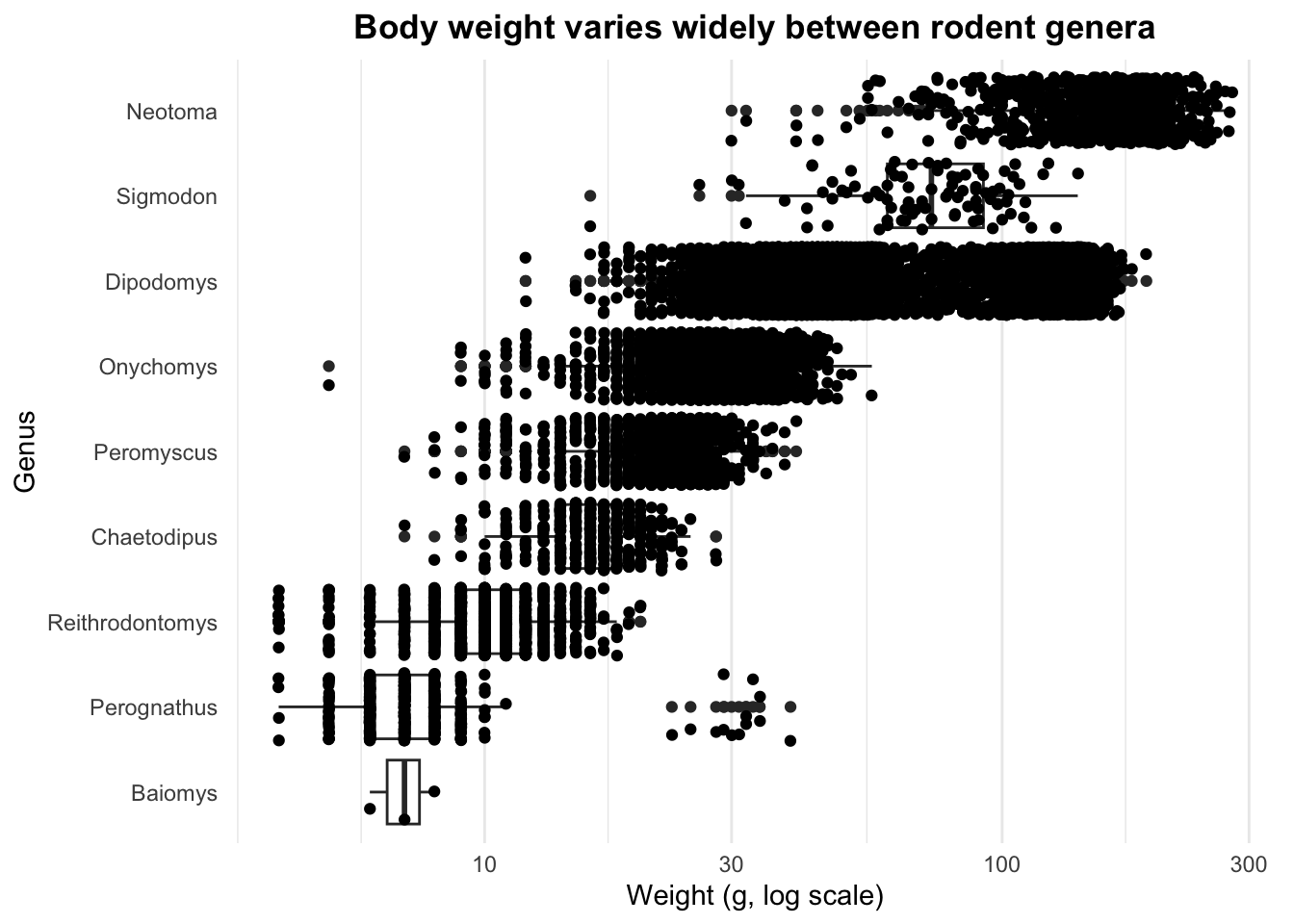
Add the points.geom_jitter() is geom_point() with a little random spread, so that points with the same value don’t sit exactly on top of each other. Because plot_weight already holds the data and the mappings, we only need to add the geom:
plot_weight +geom_boxplot() +geom_jitter()
That’s more than 13,000 points, and they’ve completely covered the boxes. We need to make the points smaller and transparent, and keep them within their own row.
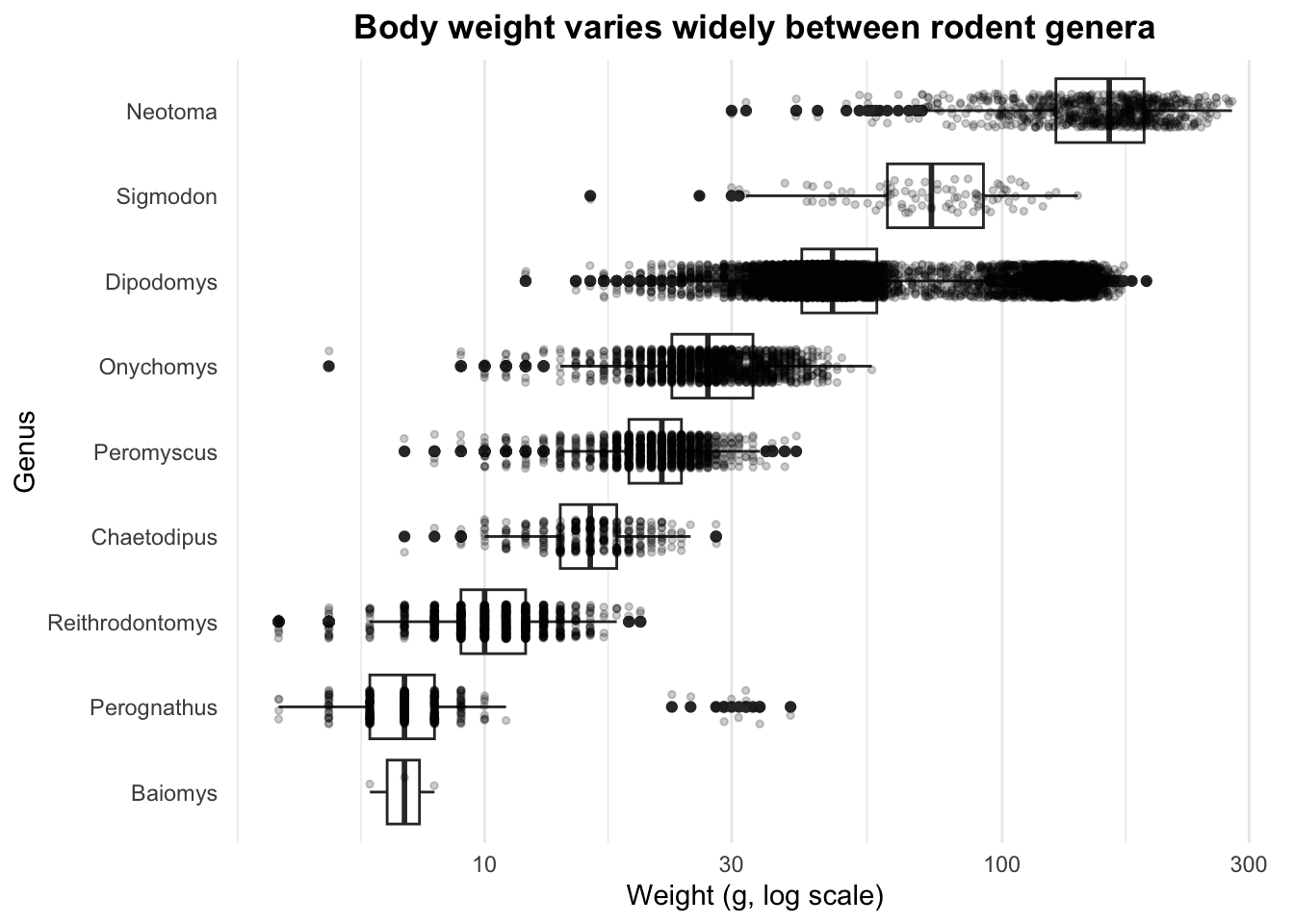
Tune the points. Three arguments inside geom_jitter() do this: alpha sets transparency (0 is invisible, 1 is solid), size sets the point size, and height controls how far the points are spread vertically across the genus categories. (If your categories were on the x axis you would use width instead.)
Looks better: we can now see where the data is dense. But the points are still drawn over the boxes, and they overlap with the boxplot’s own outlier points.
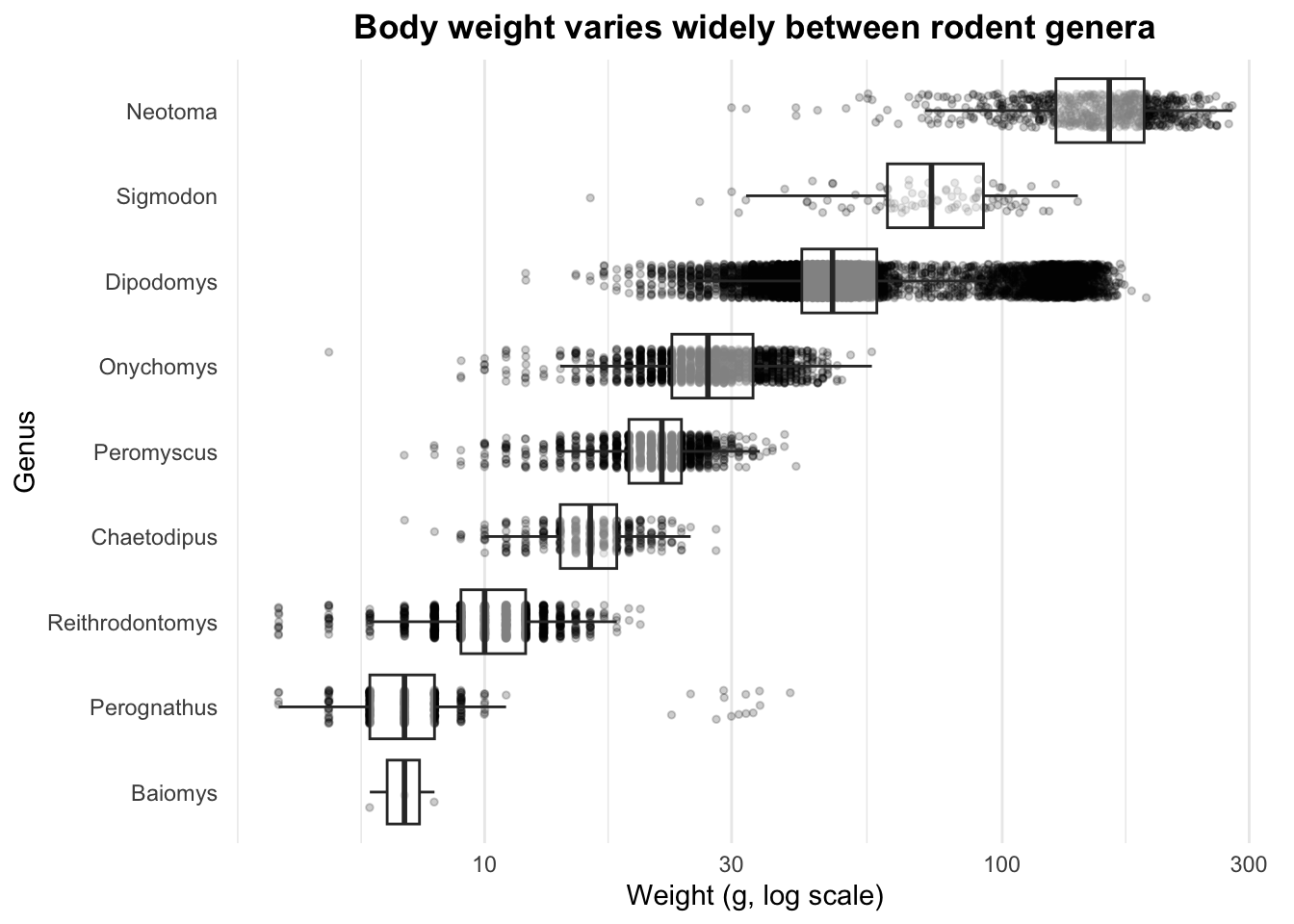
Order the layers. Layers are drawn in the order you add them, so to put the boxes on top we add geom_jitter() first and geom_boxplot() second. While we’re there, we make the boxes semi-transparent too, and use outlier.shape = NA to hide the boxplot’s own outlier points, since the jittered points already show them.
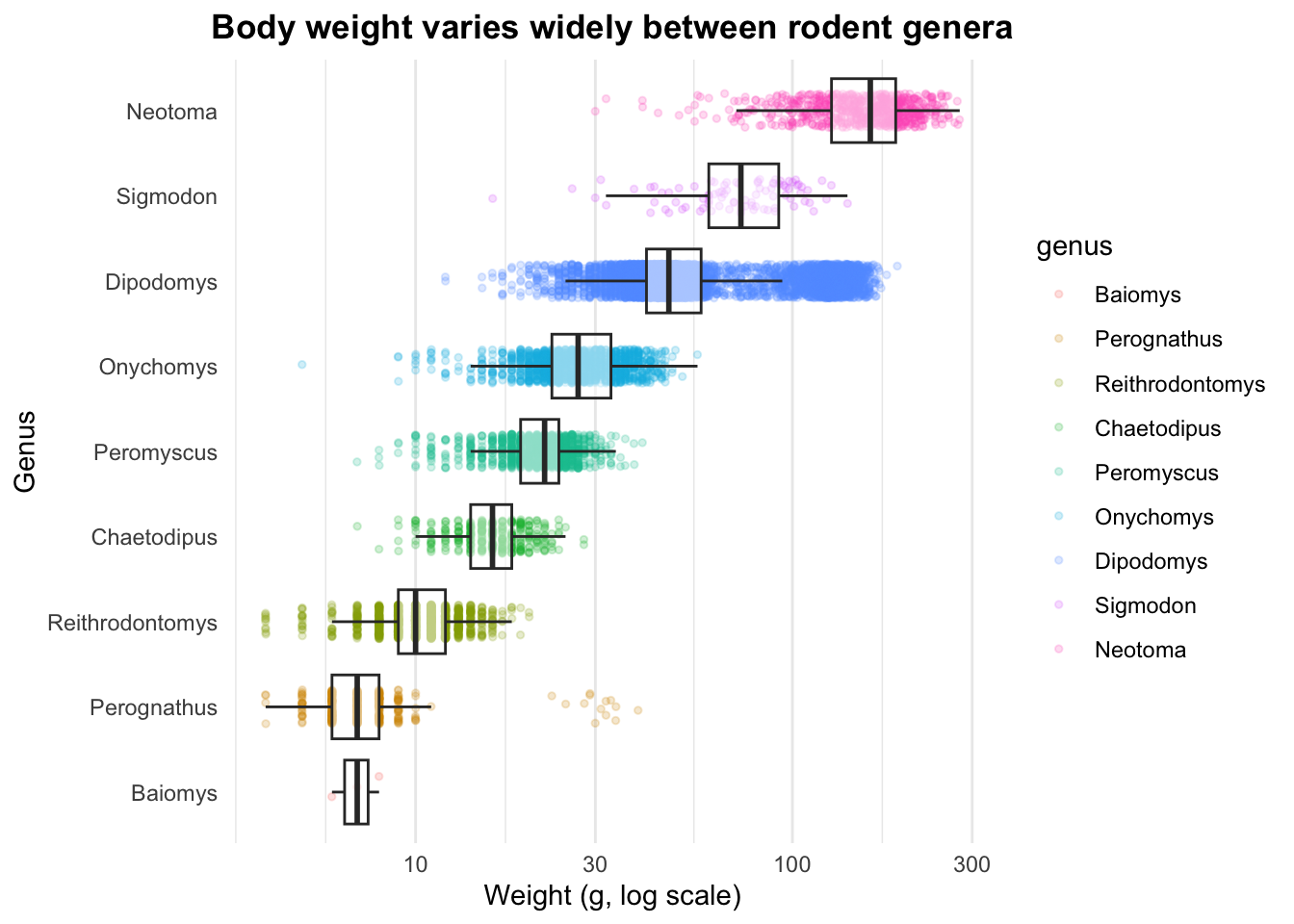
Colour the points by genus. Just as we did with fill in Step 7, we put a mapping inside geom_jitter() so that only the points are coloured and the boxes stay black:
Look at Baiomys at the bottom: only three animals. The boxplot alone would never have told you that.
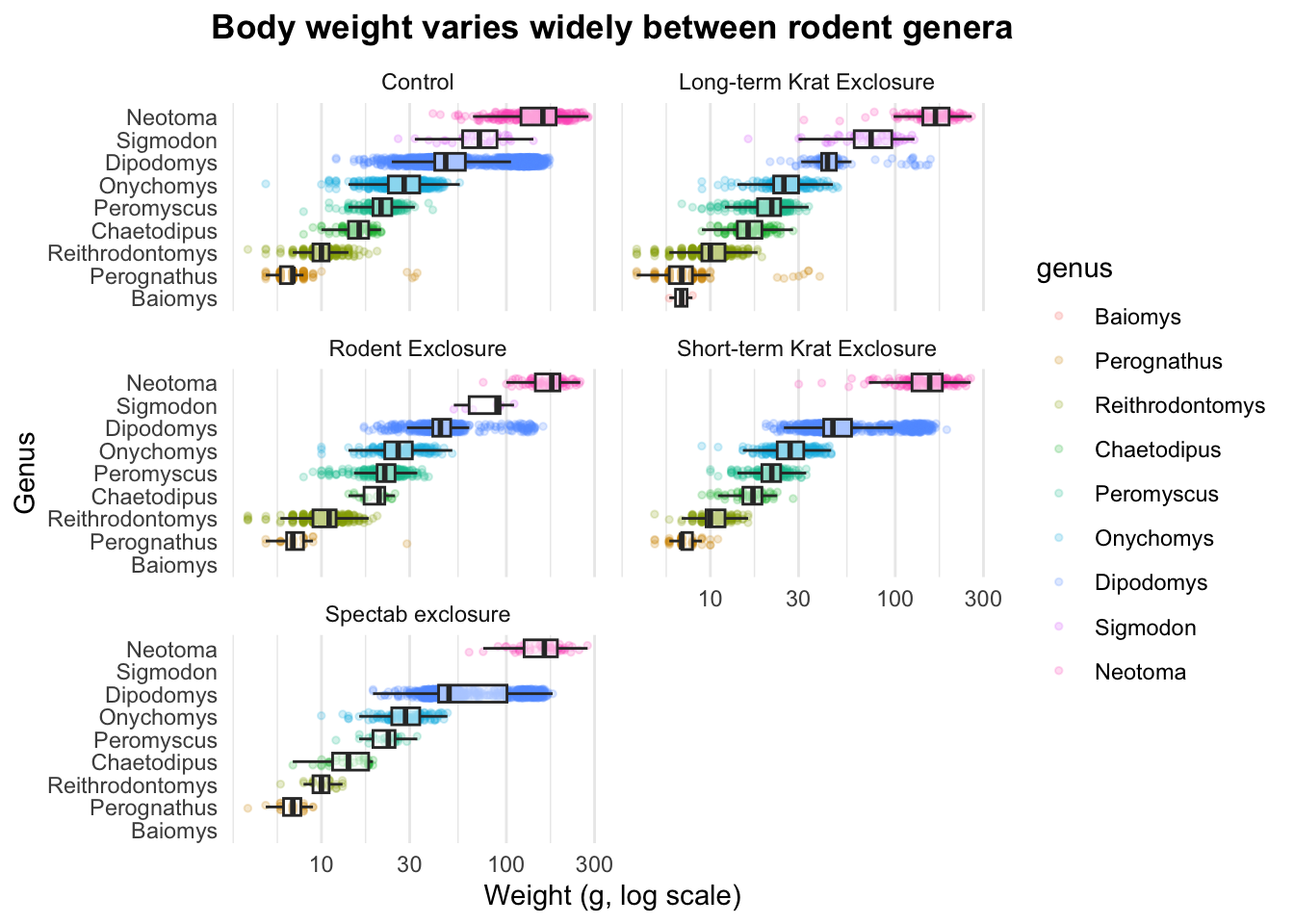
Split by plot type. Finally, facet_wrap() works on this plot exactly as it did in Step 8. With the points showing, the panels now tell you how many animals were caught as well as how heavy they were:
Compare the Dipodomys row across panels: a dense band of points in Control, and almost nothing in the Long-term Krat Exclosure. Kangaroo rats (“Krats”) are exactly what that exclosure was designed to keep out — and only the points, not the boxes, make that visible.
WarningChallenge exercise: Colours for publication (5 minutes)
The default colours are fine for exploring, but they aren’t ideal for publication: they’re hard to tell apart for people with colour-vision deficiency and they print badly in greyscale. The viridis palettes, built into ggplot2, are designed to be readable in both cases.
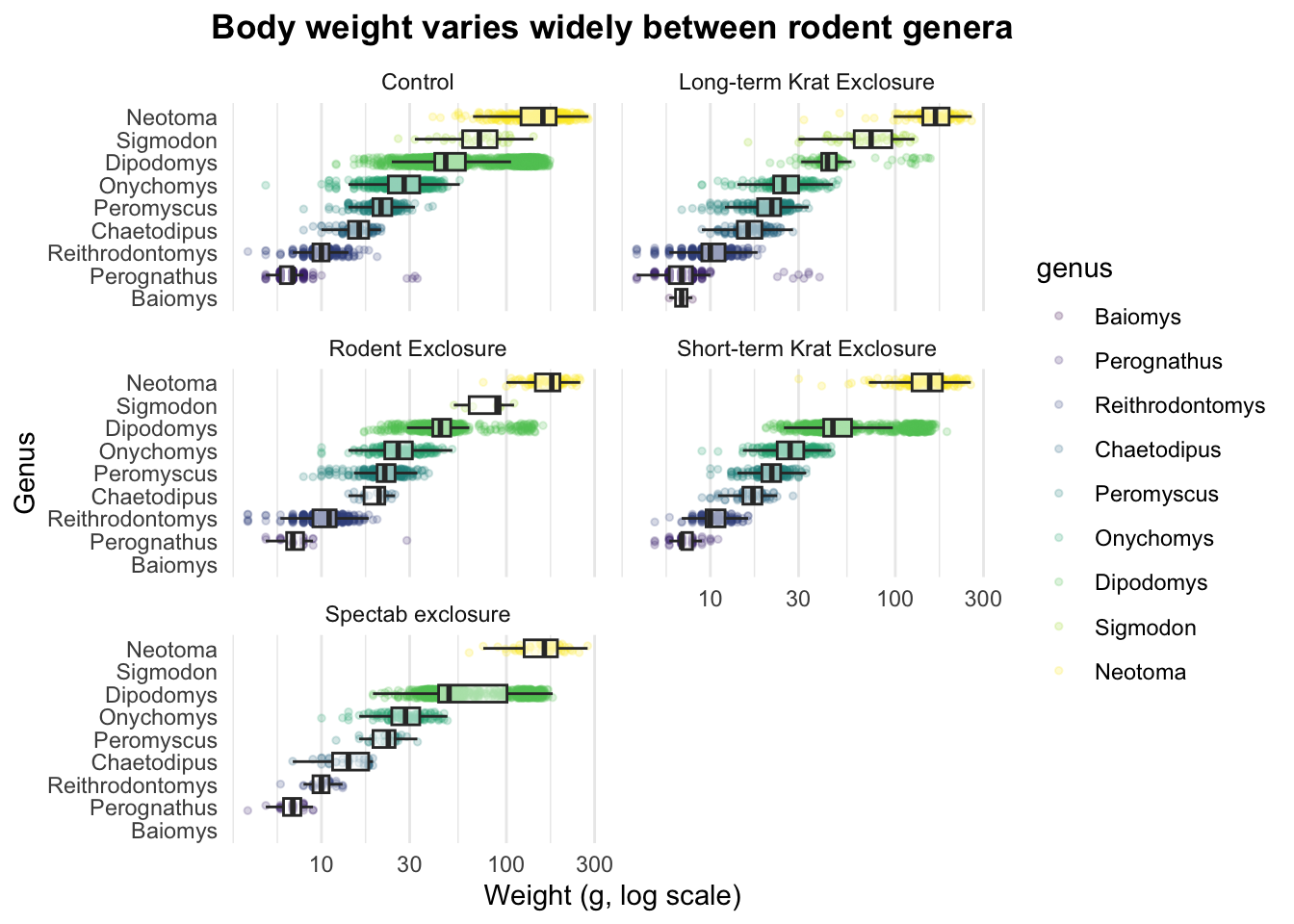
Starting from the last plot in the section above, recreate the plot below:
Apply a viridis palette to the dots. As you coloured points with colour in the section above, the matching function is scale_colour_viridis_d() (the _d stands for discrete).
Assign the result to a new object, plot_weight_point, so you can save it with ggsave() as a second figure.
TipSolution
Scales are layers too, so they are added with + just like a geom. Assigning back to the same name replaces the old object with the updated plot.
You can also specify one of the below optional arguments to set where the image will be saved:
path: the path of the directory we want to save our plot in (if not already in our filename).
create.dir: whether to create a new directory if the directory specified in path doesn’t exist.
File type
ggplot supports both vector and raster formats. Vector formats store images as instructions, which means they can be resized without any loss of quality, whereas raster formats store images as fixed arrays of pixels, meaning they cannot be resized without losing quality. The JPEG format we used above is an example of a raster format - the image resolution is fixed when it is saved, so it cannot be resized very much without looking bad.
Supported vector formats:
.pdf (Portable Document Format, when unflattened)
.svg (Scalable Vector Graphics)
.eps (Encapsulated PostScript)
Supported raster formats:
.png (Portable Network Graphics)
.jpg or .jpeg (Joint Photographic Experts Group)
.tiff or .tif (Tagged Image File Format)
.bmp (Bitmap)
Sometimes a journal will ask for figures in a vector format so that they can size the image appropriately based on the typesetting of the document. Otherwise, most of the time you’ll select a raster format and set the size of the image yourself. To do this you need to use the following optional arguments:
width & height: plot size in units defined by the units argument.
units: one of the following - “in”, “cm”, “mm”, “px” (defaults to inches).
dpi: plot resolution in dots per inch (defaults to 300).
Clarifying DPI
Confusion around DPI is common. People often conflate DPI with other attributes of images relating to their size, or to the supposed ‘quality’ of an image.
There are three properties that determine the size and quality of an image:
Resolution: the pixel dimension of a screen or an object on a screen, expressed as width x height (e.g. 1920x1080).
Print size: the physical dimensions of an image when printed, typically measured in inches for photos.
DPI: Dots per inch, or the density of ink dots printed onto paper.
To obtain the print size of an image, the resolution is divided by the DPI set inside the image metadata. For example, if an image has a resolution of 900x900 pixels, and the DPI in the image is set to 300, then the image will be printed at 3 x 3 inches. The DPI setting inside the metadata of a digital image has absolutely no bearing on how that image is represented on a screen, only when it is printed or added into something like a Word doc which shows you how a document will look when printed.
It’s common for journals to ask for figures based only on a particular DPI (often 300), but this by itself is meaningless. You could send them an image with a resolution of 150 x 150 pixels and a DPI set to 300, but when printed it would only be half an inch by half an inch. What they really mean is they want images with “a resolution large enough to display the image at the chosen size when printed.”
If you need to set a DPI and physical size, then the resolution will be determined by multiplying the two together. For example, let’s say we need our plot to be 8 x 5 inches on the page and 600 DPI.
This results in an image with those pixel dimensions, and the default value of 300 DPI has been entered into the image metadata. This means the image will be sized at 8 x 5 inches on a page by default, and if it is resized to be larger than this, it will look bad.