renv::init()Managing Dependencies
One of the benefits of using R to analyse data is gaining access to the incredible ecosystem of packages that have been developed to make it easier to perform all kinds of different analyses. Packages are often updated to fix bugs, add new functionality, or change existing functionality. Sometimes this means code breaks. Something that used to work with a previous version of a package no longer works, so the code stops running. This can be frustrating and time consuming to fix. Fortunately, by smartly managing dependencies (the packages that our code depends on to work), we can largely avoid the problem.
Introducing renv
renv (short for r environment) makes your R projects:
- Isolated: Installing a new or updated package for one project won’t break your other projects, and vice versa. That’s because renv gives each project its own private package library.
- Portable: Easily transport your projects from one computer to another, even across different platforms. renv makes it easy to install the packages your project depends on.
- Reproducible: renv records the exact package versions you depend on, and ensures those exact versions are the ones that get installed wherever the project goes.
To use renv in your project, in the console:
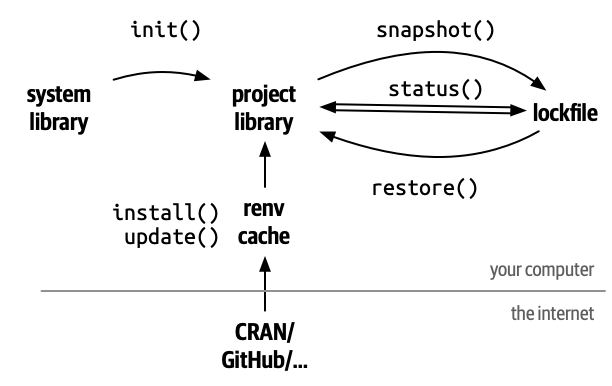
This will set up a project library in a folder called renv, containing all the packages you’re currently using. The packages (and all the metadata needed to reinstall them) are recorded into a lockfile, renv.lock, and a .Rprofile file ensures that the library is used every time you open that project.
As you work on your project, you will install and upgrade packages, either using install.packages() and update.packages() or renv::install() and renv::update(). After you’ve confirmed your code works as expected, use renv::snapshot() to record the packages and their sources in an updated lockfile.
Later, if you need to share your code with someone else or run your code on new machine, your collaborator (or you) can call renv::restore() to install the specific package versions recorded in the lockfile.
When we use renv commands we use the :: notation so we don’t actually have to load the renv package, and we always enter renv commands in the console. We don’t preserve them in our script.
The below graphic shows a diagram of the standard workflow:
Testing it out
Run renv::init() and you should see some activity in the console and you’ll see some new files in the Git pane.
We now have a renv.lock file that has recorded the packages, and their versions, that are loaded in our script (or loaded in any scripts within our project).
Lets install and load another package, as if we were going to use it in our script. In the console:
install.packages("ratdat")renv should tell you in the console that it is going to download the package from CRAN and install it within the project/renv folder. You’ll need to hit Shift+Y to confirm. It downloads the package, stores it within a central package cache, and links it into your project package library. This means if you want to link that same package in a different project renv will link it from the central cache without having to download it again. Now let’s load the ratdat package in our script as if we were going to use it.
library("ratdat")Let’s pretend we used the package and were happy with our code. We can check the status of our project to see if renv has detected the new package.
renv::status()renv should tell you that ratdat is installed and used, but not recorded in the lock file. To fix this we take a snapshot to update the lock file.
renv::snapshot()You should be prompted to allow the lock file to be updated with the package (Shift+Y to confirm).
As we’re not actually using this package, we can remove it from our project by running:
renv::remove("ratdat")And deleting the library("ratdat") call above. Now we can update our lock file again:
renv::snapshot()If someone clones the project from GitHub, and they have renv installed, they can renv::restore() the packages within the lockfile so that these package versions will be installed into the project package library on their machine too. This means they have the same packages, and the same versions, installed in their project library as the person who created the code.